介绍
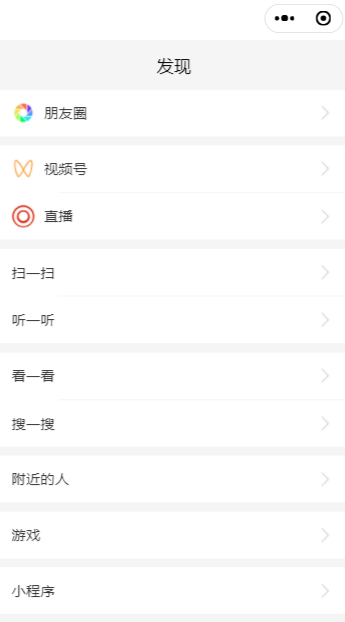
本案例实现微信【发现】界面,是无图片版本,如下图:
创建页面
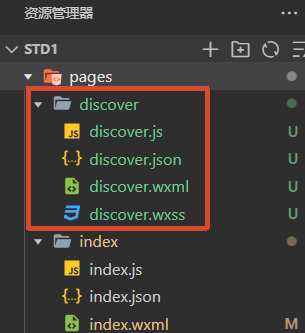
文件结果如下图:
- 在
pages文件夹下,创建discover2文件夹 - 在
discover2文件夹下,创建discover2页面
默认显示该页面
修改 app.json 文件,如下:
"pages": [
    "pages/discover2/discover2",
    "pages/discover/discover",
    "pages/index/index",
    "pages/logs/logs",
  ],
将 "pages/discover/discover2", 放到 pages 数组的第一项
discover2.wxml
以 朋友圈 为例,增加图标、右侧箭头:
<!-- 朋友圈 -->
<view class="group">
  <view class="item" hover-class="active">
    <!-- 显示图表 -->
    <image src="/images/pyq.png" class="item-icon"></image>
    <text>朋友圈</text>
    <!-- 显示右侧箭头 -->
    <image src="/images/right.png" class="item-right"></image>
  </view>
</view>
完整代码
<view class="discover-container">
  <!-- 顶部标题 -->
  <view class="header">
    <text class="header-text">发现</text>
  </view>

  <!-- 朋友圈 -->
  <view class="group">
    <view class="item" hover-class="active">
      <!-- 显示图表 -->
      <image src="/images/pyq.png" class="item-icon"></image>
      <text>朋友圈</text>
      <!-- 显示右侧箭头 -->
      <image src="/images/right.png" class="item-right"></image>
    </view>
  </view>

  <!-- 视频号、直播 -->
  <view class="group">
    <view class="item" hover-class="active">
      <image src="/images/sph.png" class="item-icon"></image>
      <text>视频号</text>
      <image src="/images/right.png" class="item-right"></image>
    </view>
    <view class="divider"></view>
    <view class="item" hover-class="active">
      <image src="/images/zb.png" class="item-icon"></image>
      <text>直播</text>
      <image src="/images/right.png" class="item-right"></image></view>
  </view>

  <!-- 扫一扫、听一听 -->
  <view class="group">
    <view class="item" hover-class="active">
      <text>扫一扫</text>
      <image src="/images/right.png" class="item-right"></image>
    </view>
    <view class="divider"></view>
    <view class="item" hover-class="active">
      <text>听一听</text>
      <image src="/images/right.png" class="item-right"></image>
    </view>
  </view>

  <!-- 看一看、搜一搜 -->
  <view class="group">
    <view class="item" hover-class="active">
      <text>看一看</text>
      <image src="/images/right.png" class="item-right"></image>
    </view>
    <view class="divider"></view>
    <view class="item" hover-class="active">
      <text>搜一搜</text>
      <image src="/images/right.png" class="item-right"></image>
    </view>
  </view>

  <!-- 附近的人 -->
  <view class="group">
    <view class="item" hover-class="active">
      <text>附近的人</text>
      <image src="/images/right.png" class="item-right"></image>
    </view>
  </view>

  <!-- 游戏 -->
  <view class="group">
    <view class="item" hover-class="active">
      <text>游戏</text>
      <image src="/images/right.png" class="item-right"></image>
    </view>
  </view>

  <!-- 小程序 -->
  <view class="group">
    <view class="item" hover-class="active">
      <text>小程序</text>
      <image src="/images/right.png" class="item-right"></image>
    </view>
  </view>
</view>
discover.wxss
/* 图标样式 */
.item-icon{
  width: 50rpx;
  height: 50rpx;
  margin-right: 20rpx;
}
/* 右侧箭头样式 */
.item-right{
  width: 50rpx;
  height: 50rpx;
  /* 关键:靠右显示 */
  margin-left: auto;
}
按照上面修改后,文字与图标 基线对齐,需要设置垂直对齐,修改 .item 样式,增加下面代码:
/* 设置flex布局,让图标、文字垂直对齐 */
display: flex;
align-items: center; /* 垂直居中对齐 */
完整代码
/* 关键:页面整体背景 */
page {
  background-color: #f5f5f5;
  margin: 0;
  padding: 0;
}

/* 关键:最外层容器,加上discover-,避免与 app.wxss 样式重名 */
.discover-container {
  width: 100%;
}

/* 顶部标题区域 */
.header {
  padding: 30rpx 0 30rpx;
  text-align: center;
}
.header-text {
  font-size: 38rpx;
  font-weight: 500;
  color: #000;
}

/* 每组菜单容器(白色卡片) */
.group {
  /* 关键:背景为白色,避免整个分割线显示底色 */
  background-color: #ffffff;
  margin-bottom: 20rpx;
}

/* 单行菜单选项 */
.item {
  font-size: 32rpx;
  height: 100rpx;
  /* 关键:文字垂直居中 */
  line-height: 100rpx;
  padding: 0 30rpx;
  color: #333;
  /* 设置flex布局,让图标、文字垂直对齐 */
  display: flex;
  align-items: center; /* 垂直居中对齐 */
}

/* 分组内分割线 */
.divider {
  height: 1rpx;
  background-color: #e6e6e6;
  /* 左边缩进,不和页面贴边 */
  margin-left: 130rpx;
  /* 关键:细线效果,解决小程序1px过粗问题 */
  transform: scaleY(0.5);
}

/* 点击高亮态 */
.active {
  background-color: #eeeeee;
}

/* 图标样式 */
.item-icon{
  width: 50rpx;
  height: 50rpx;
  margin-right: 20rpx;
}
/* 右侧箭头样式 */
.item-right{
  width: 50rpx;
  height: 50rpx;
  /* 关键:靠右显示 */
  margin-left: auto;
}